Most studios' BOQ template is whatever the last project's file happened to look like - categories in a different order every time, a GST column someone added halfway down, formulas that broke three rows ago and nobody noticed. It works, technically, right up until a rate is off by one row and nobody catches it before the vendor PO goes out.
This is a proper one: 12 pre-built trade categories covering a typical Indian residential interior fit-out, the same item/spec/unit/quantity/rate/GST columns a well-structured BOQ needs, and every Amount/GST/Total cell already a working formula - in two ready-made layouts, so you can use whichever matches how your studio actually plans a project. Download it, delete what you don't need, and start filling in your own project's numbers.
A ready-to-fill BOQ Excel template - category-wise and room-wise versions, both with GST formulas and a matching summary sheet with a discount calculator.
What's Included in the Template
The download has five tabs - one instruction sheet, and two independent template + summary pairs:
- How to Use - a one-page instruction sheet: which cells to fill, which are formulas, and where the GST default lives.
- BOQ — Category-wise / Summary — Category-wise - the classic vendor-negotiation view: line items pre-grouped into 12 trade categories (Civil & Carpentry, False Ceiling, Electrical, Plumbing & Sanitary, Painting & Wall Finishes, Flooring, Modular Kitchen, Wardrobes & Storage, Furniture, Soft Furnishing & Curtains, Decorative Lighting, and Miscellaneous), each with a realistic example row and open rows underneath. Useful when you're comparing vendor quotes trade by trade.
- BOQ — Room-wise / Summary — Room-wise - the same kind of line items, grouped instead by room (Living Room, Kitchen, Master Bedroom, and so on) - the view that matches how most clients picture their own home, with a Category column still tracked per line since one room usually spans several trades.
- Each item table's Subtotal row is a real formula (a
SUMover that section), and its matching Summary tab reads those Subtotal cells directly - a grand total, plus a Discount % cell that recalculates a final payable amount, the same subtotal → discount → tax → grand total shape most quotations and BOQs are built on.
Note what each sheet doesn't ask you to fill in: the category-wise sheet has no Category column (the section header above each block already says it), and the room-wise sheet has no Room column for the same reason - one less redundant field to keep in sync as you edit.
How to Fill It In, Column by Column
| Column | What to enter |
|---|---|
| Room (category-wise sheet) / Category (room-wise sheet) | The one dimension that varies per line within a section - leave blank if it doesn't matter for your project |
| Item Description | Specific enough to order against - "Wardrobe shutter" isn't enough, "18mm BWR ply, laminate finish, soft-close hinges" is |
| Specification / Notes | Brand, grade, or finish - the detail that stops a vendor quietly substituting a cheaper material mid-project |
| Unit | sqft, rft, sqm, nos, set, lot, etc. |
| Quantity | Measured off finalised drawings, not guessed |
| Rate (₹) | Current vendor rate per unit |
| GST % | Defaults to 18 on every row - India's standard slab for most furniture, fixtures and services - edit per row if an item's HSN/SAC code falls in a different slab |
Amount, GST Amount, and Total incl. GST are formulas - Quantity × Rate, Amount × GST% / 100, and their sum, respectively. Leave those columns alone; they update the moment you type a quantity and rate.
A Worked Example
Here's one section from the category-wise sheet, filled in, so you can see how the formulas add up before you open the file:
| Item | Unit | Qty | Rate (₹) | Amount (₹) | GST | Total (₹) |
|---|---|---|---|---|---|---|
| Base + wall unit cabinetry | rft | 18 | 3,200 | 57,600 | 18% | 67,968 |
| Quartz countertop | rft | 18 | 1,450 | 26,100 | 18% | 30,798 |
| Modular Kitchen — Subtotal | 83,700 | 98,766 |
Every other section in the sheet follows the same pattern - and the matching Summary tab totals all of them, plus lets you apply a client-facing discount, without touching a single formula yourself.
Where a Spreadsheet Template Stops Being Enough
A template like this genuinely works for a single project, start to finish. Where it breaks down is the moment a studio is running more than one project, or a BOQ needs to change mid-project - which, on any real interior fit-out, it does:
- No version history. Editing a rate directly into the row that already went to a vendor destroys any record of what the original approved number was.
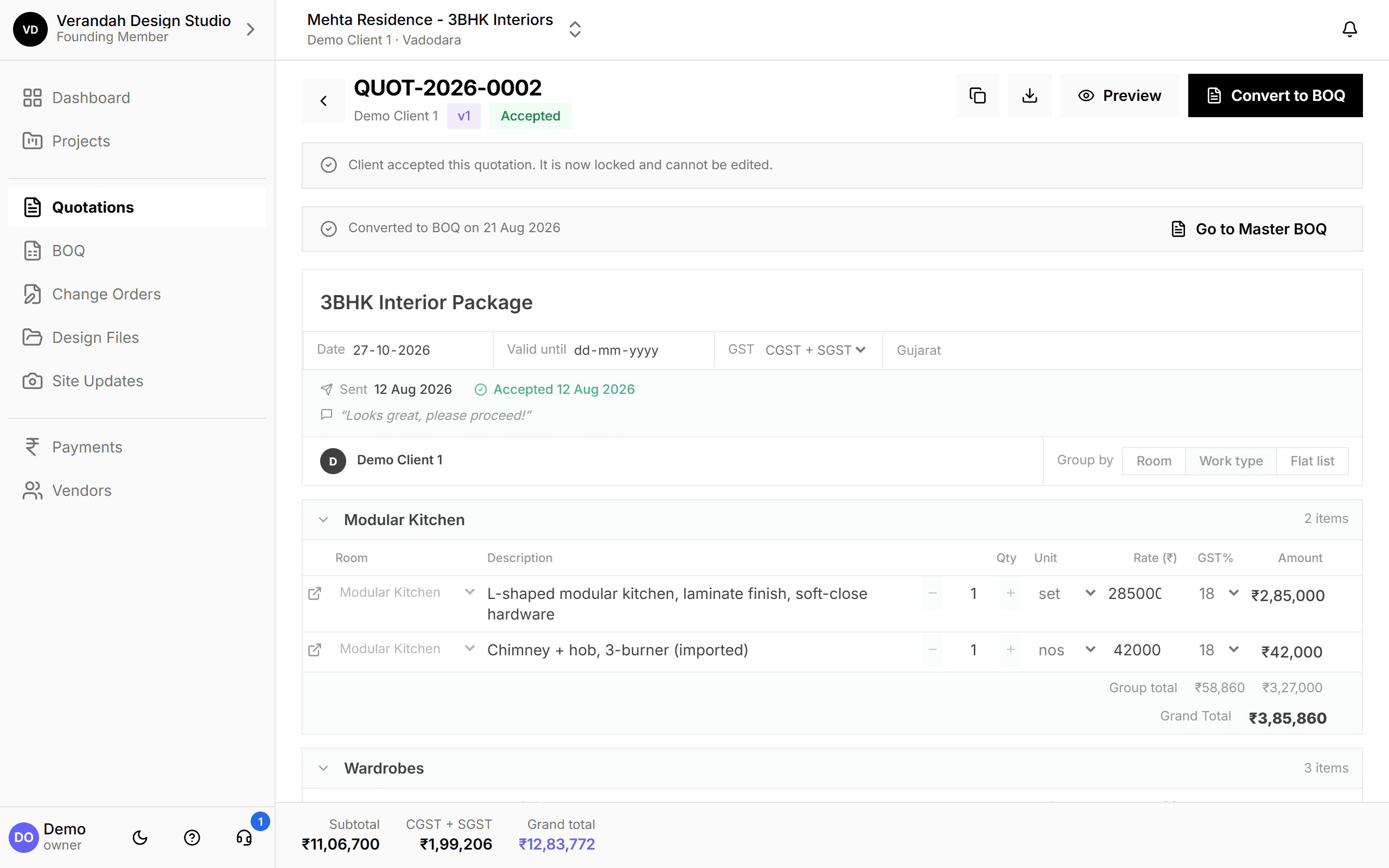
- Nothing ties the BOQ back to the quotation it came from, so the two silently drift apart the first time either one is revised.
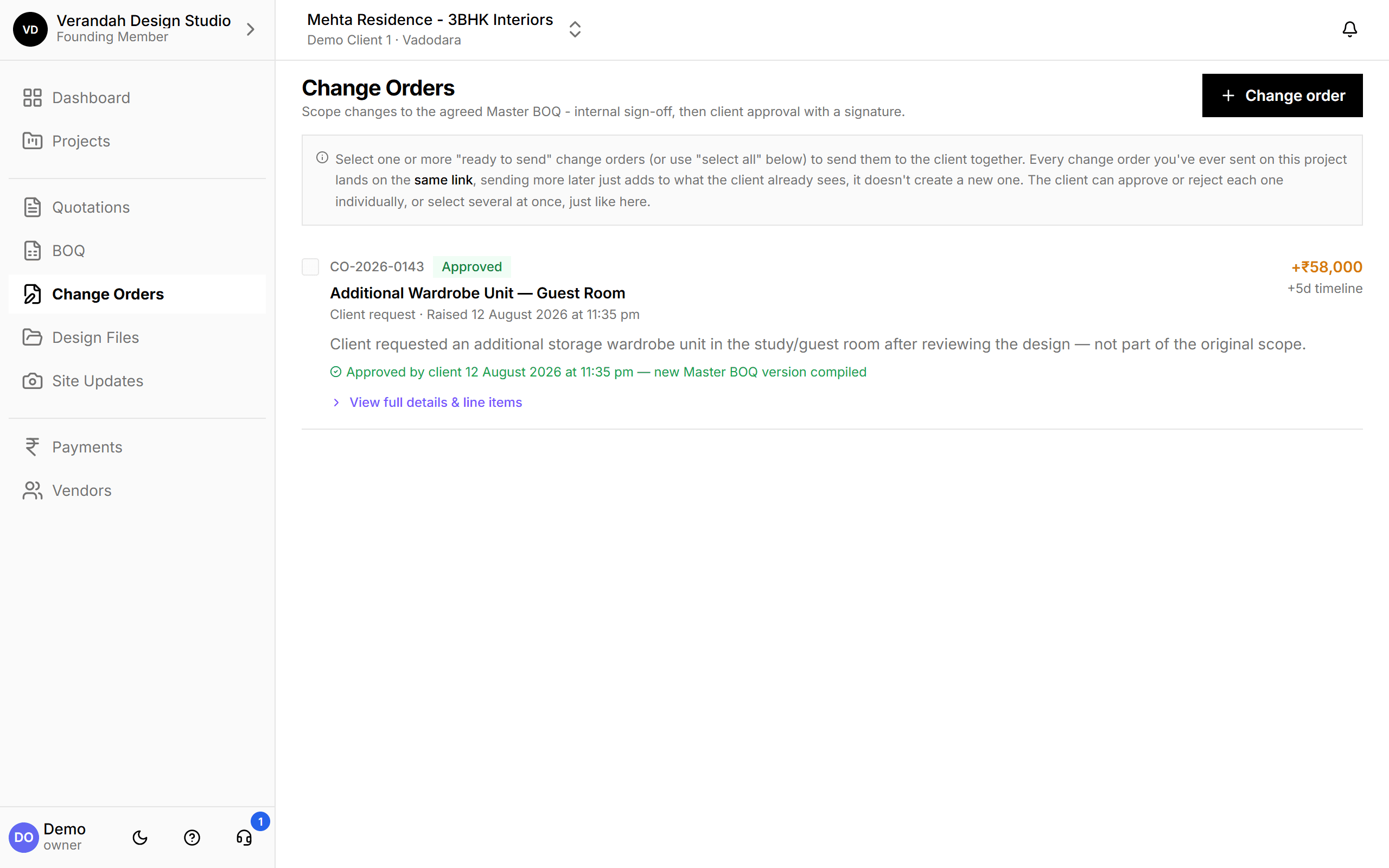
- A change order means copying the whole file -
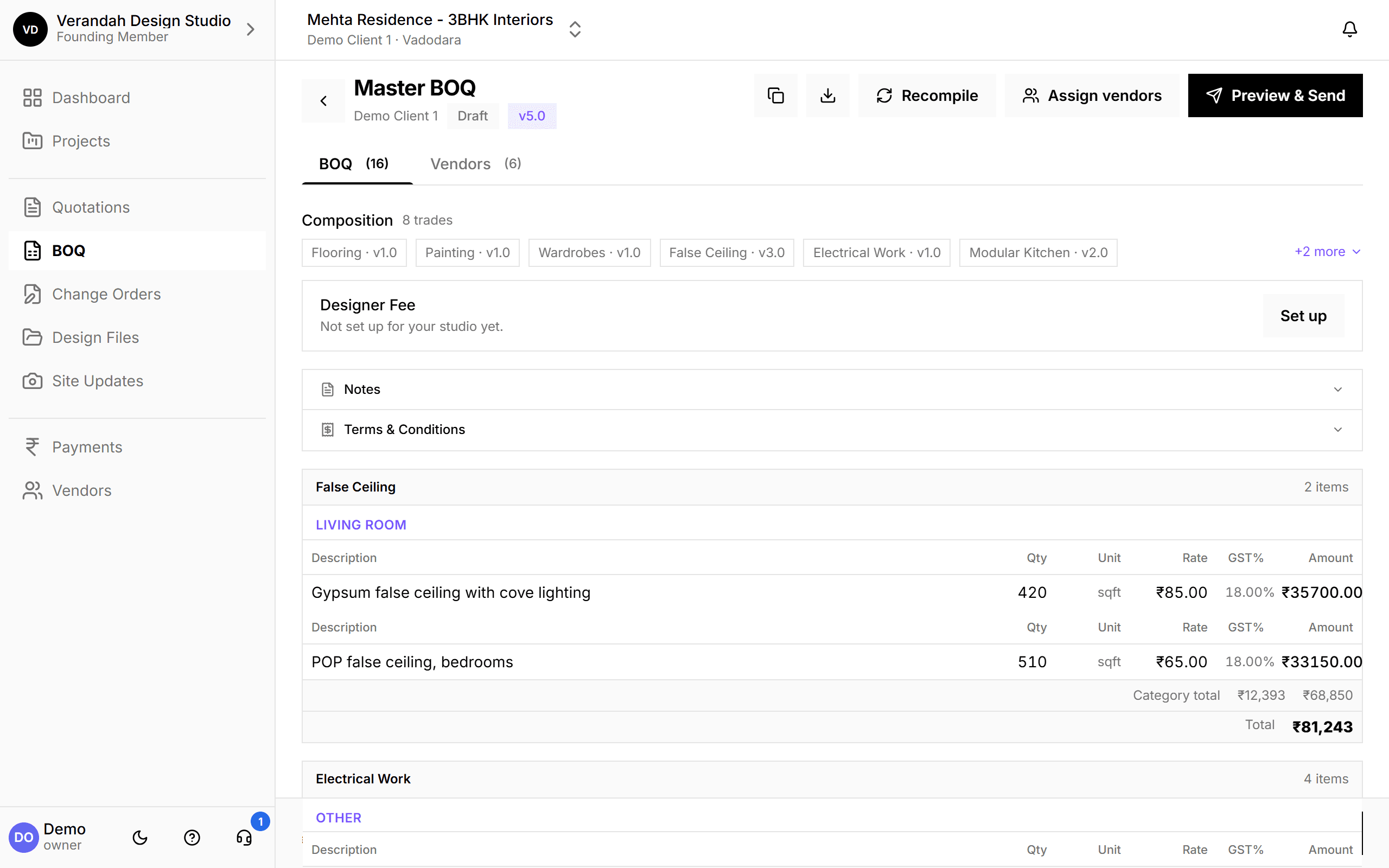
BOQ_v2_client_extra.xlsx- rather than a clean, dated addition to the existing document. - Vendor-wise and category-wise views don't stay in sync. The moment a category BOQ (per trade, sent to a vendor) and a master BOQ (the client-facing rollup) are two separate files, keeping them matched by hand is a full-time job on a busy project.
Vismayum's BOQ builder keeps a per-trade Category BOQ and a client-facing Master BOQ in sync automatically - every revision versioned and timestamped, with GST calculated per line the same way this template does it, and a direct link back to the quotation it was built from.
See the BOQ workflow on a free callFrequently Asked Questions
Is this BOQ template really free?
Yes - it's a straight download, no email or signup required. It's an Excel (.xlsx) file you can open, edit, and reuse for as many projects as you like.
Does it work in Google Sheets?
Yes. Upload the .xlsx to Google Drive and open it with Google Sheets, or use File → Import - the formulas (SUM, SUMIF, IF) all carry over correctly.
Does the GST calculation handle every rate slab?
Every row defaults to 18% GST, the slab most furniture, fixtures, and interior services fall under, but it's editable per row - change it wherever an item's HSN/SAC code puts it in a different bracket (commonly 12% or 28%). Always confirm the exact classification with your CA for anything that isn't clearly standard.
Should I use the room-wise or category-wise sheet?
Whichever matches how your studio actually negotiates and executes a project - or both, since the download includes both. Category-wise is the stronger view for vendor negotiation, since you're comparing quotes trade by trade against one section. Room-wise is the stronger view for client conversations, since that's how most people picture their own home. Nothing stops you filling in both for the same project; they just don't stay in sync with each other automatically the way Vismayum's BOQ module does.
Can I add my own categories or rename the existing ones?
Yes - the section header rows (the merged band above each block, e.g. "Modular Kitchen") are plain text, not locked. Rename one, delete a section you don't need, or copy a section block to add a new one. The matching Summary tab reads each section's Subtotal row directly rather than matching text against a category column, so there's no separate label to keep in sync - just make sure a copied block's own Subtotal formula still sums the right row range.
What's the difference between this template and Vismayum's BOQ builder?
This template is a static spreadsheet - fast to start, but it won't track revisions, link back to a quotation, or stay in sync across a category BOQ and a client-facing master BOQ. Vismayum's BOQ module does all three automatically, on top of the same line-item structure this template uses.
The Bottom Line
A good BOQ template gets you a clean, professional starting point - correct columns, working formulas, GST handled per line from row one. What it can't do is stay accurate through a project's revisions on its own; that part still depends on discipline, or on software built to enforce it. Download the template, use it for your next project, and see for yourself exactly where the manual process starts to strain.